Dorico Tip #2: Text Tokens + Template Update
Hi there! It’s been a minute since my last post (well… actually 610 days, but who’s counting?)
I’ve updated my Big Band Template file, which includes 2 layouts, one for the standard 544 (reeds-trumpets-trombones + rhythm section), and an additional 555 layout. The file includes a revised layout design for both score and parts. You can gain access to this template + the Orchestral template here. (If you’ve signed up for a template on this website before, you should have received it automatically—check your email inbox!).
Here’s a preview of the Score layout:
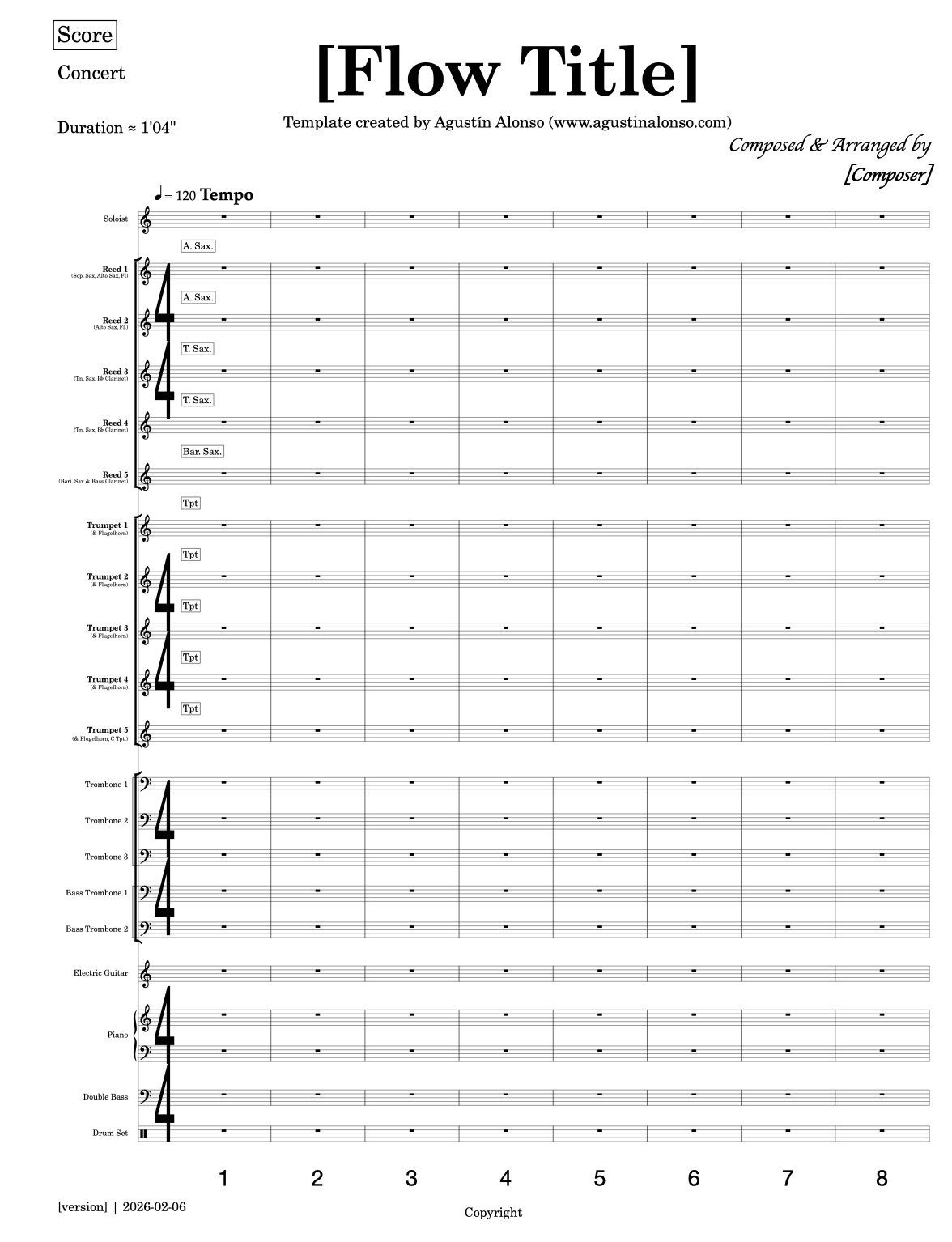
Note that for the parts, there are two separate page templates, with the one called “Big Band - PARTS (Doubling)” including an instrument list at the top left (with the text token “{@stafflabelsshort@}”). This is useful for parts of players who play more than one instrument, including percussionists, “reed” players, trumpets (if they double to Flugelhorn, for example), and Keyboard instruments, to name a few examples.
You can change and/or edit the page templates in Engrave Mode. This is what you should look for (on the right tab):
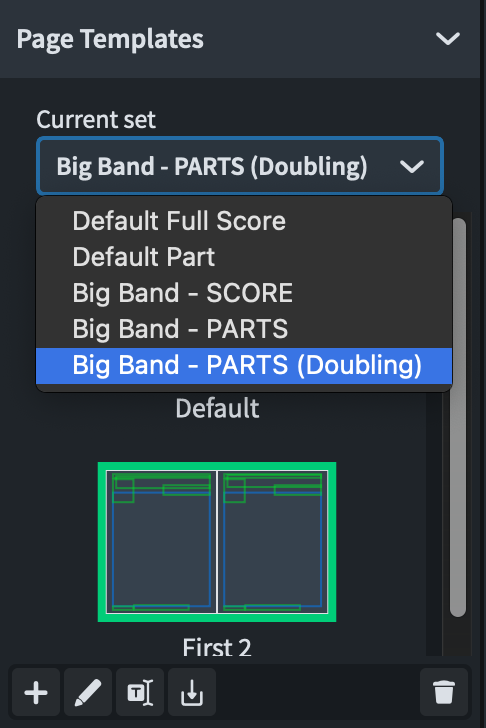
You can always edit and/or change the Page Template in Engrave Mode. You can also add or delete Text Tokens. Watch this 1-minute-long video to learn how to do this!
Speaking of Text Tokens…
Tip #2: Change Tokens in Project Info
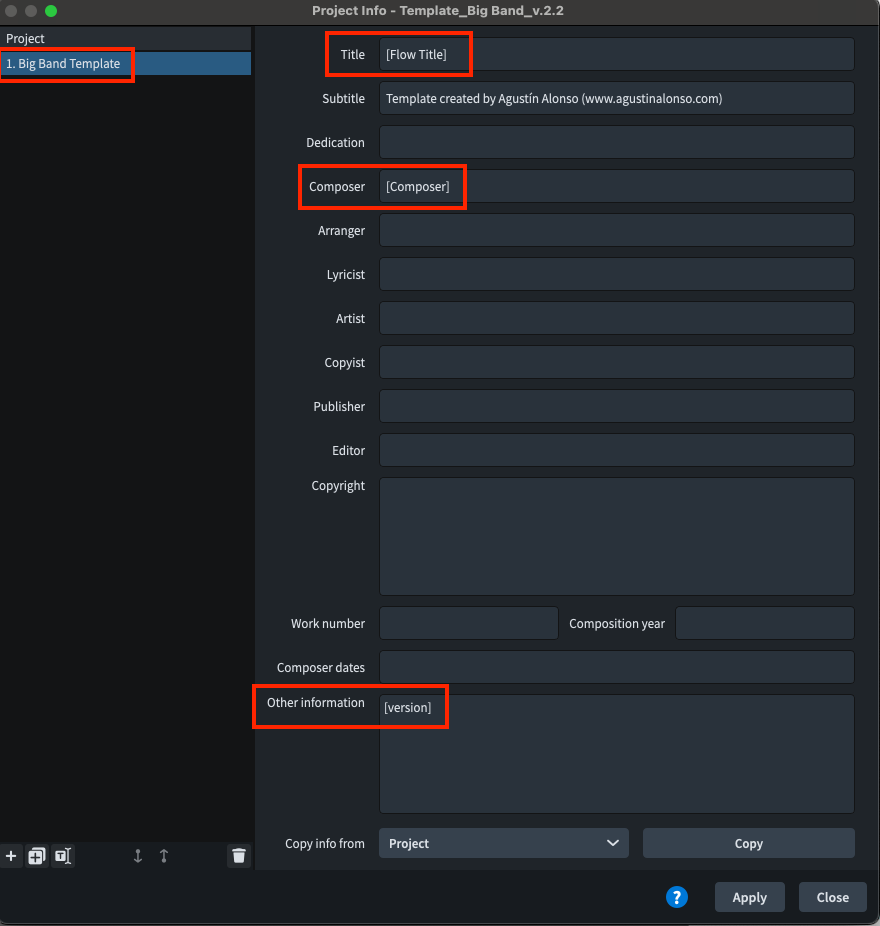
If you want to edit the text contents in the page (the Title, for example), I recommend not doing it directly on the page, but within the Project Info:
Select File/Project Info… —or Command+I (Mac) /Control+I (Windows)
In the left tab, select the Flow your music will be written in
Edit the entries with your project’s information (e.g., Title, Subtitle, Composer
In my template, you can specify the work’s current version number in “Other information”
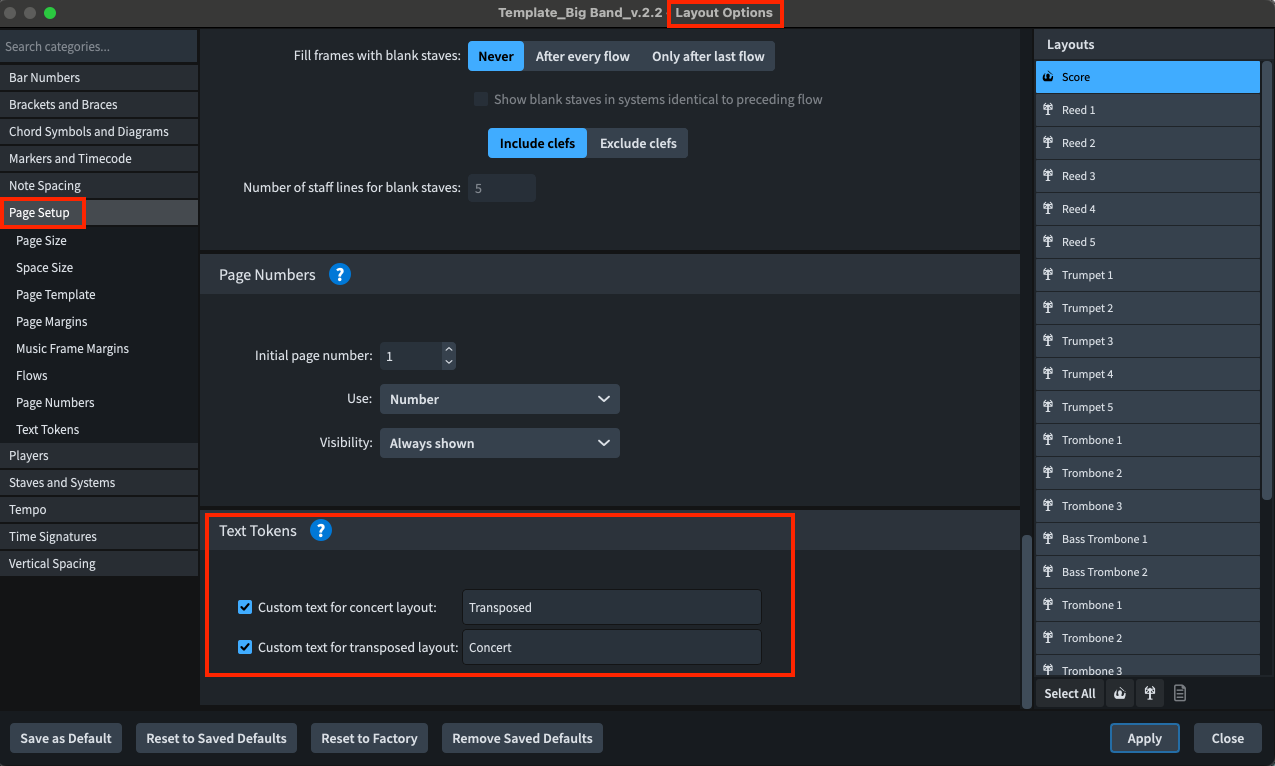
Bonus Tip: Change custom text for Concert / Transposed layouts
If you have a preferred way to differentiate your transposed and concert scores (for example, some people like to write “in C”), you can do this in Layout Options/Page Setup/Text Tokens (Remember, this will apply to the selected layout on the right side).
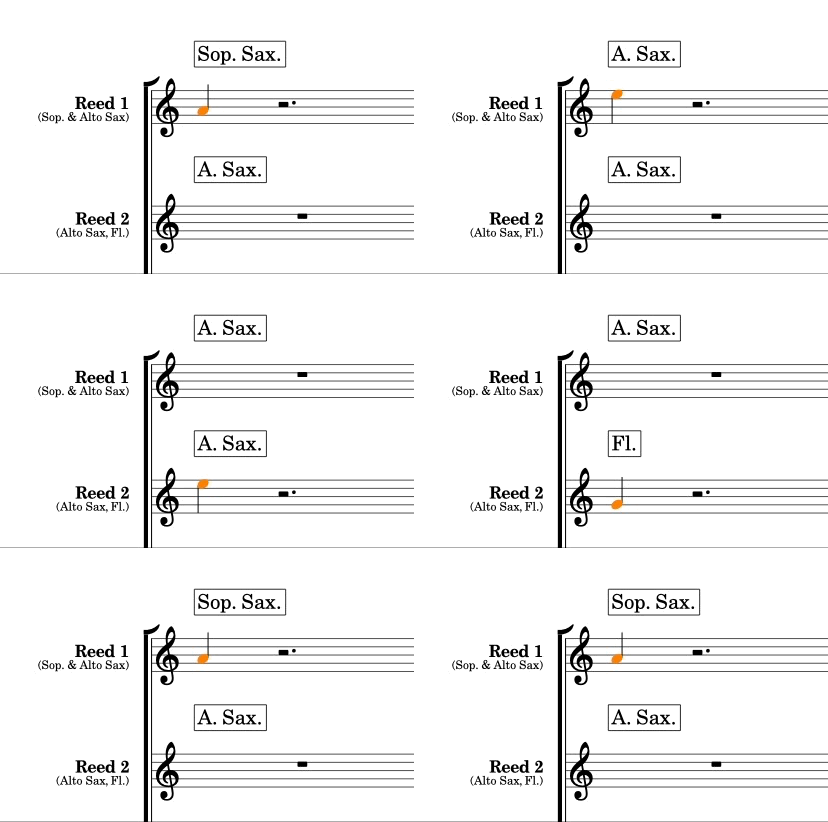
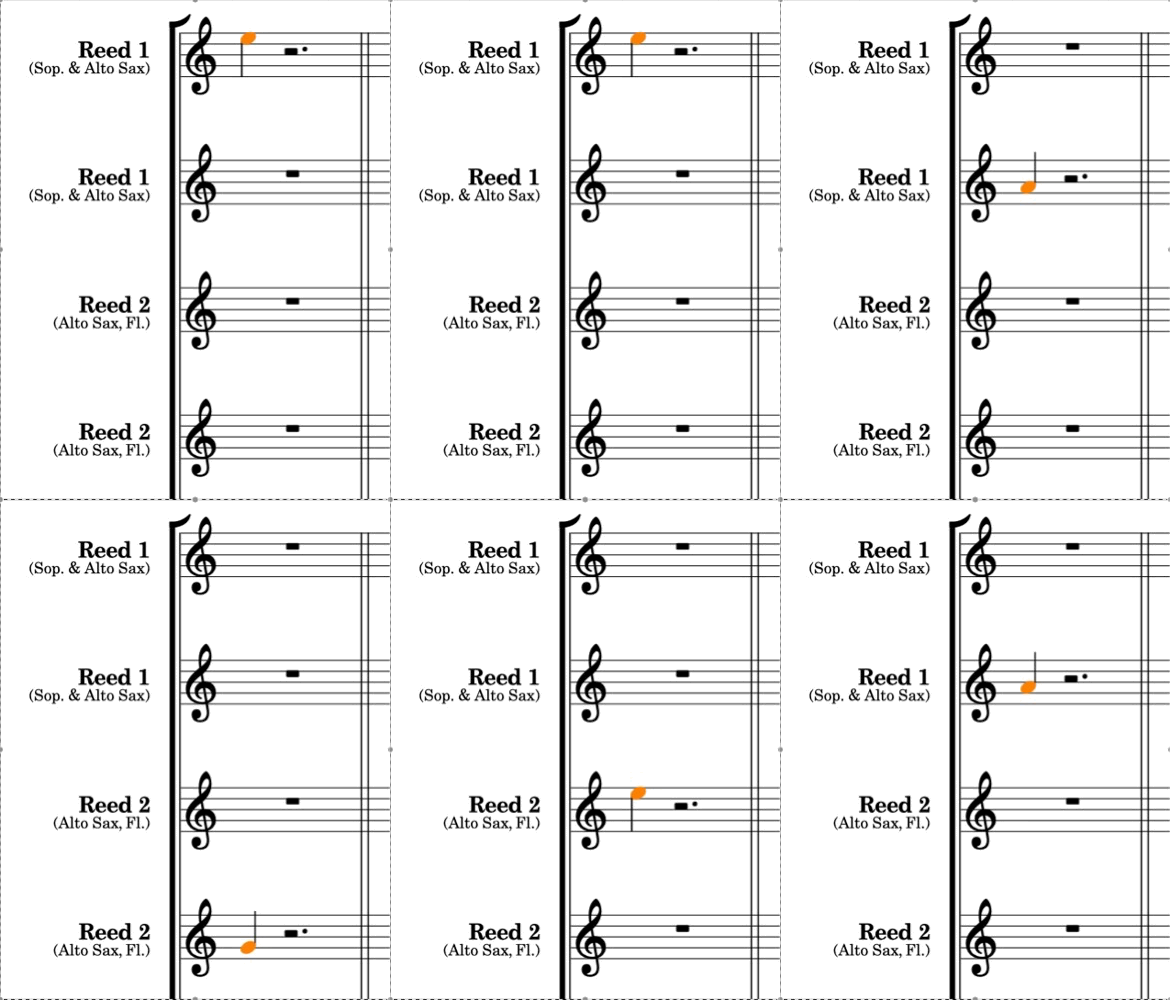
Galley View
And… that’s all I have for today. I hope you’ve taken something useful from this post. Until next time!